Sunday, January 6, 2008

Thing 26 - Play around with an online image generator

Generators? No, I’m not talking about those gas powered back-up things. The generators I’m talking about allow you to easily manipulate image and graphics to create fun images like these:


For this discovery exercise, I just want you to have fun. Find a few fun image or text generators to play around with and write a post in your blog about one of your favorites and display the result. Often adding the image you mocked up to your blog is as simple as copying and pasting code that the page provides. If not, you may just need to right click on the image and then save it to your hard drive before using Blogger’s image button to add it to your post.

If you’re having difficulty getting your image added to a post in your blog, ask a co-worker for help. In looking at several staff blogs, it’s easy to see that we have lots of people in the system who have figured out how easy it is to add images to their blogs.

Discovery Resources:

The Generator Blog
Letter James
FD Toys
Also try searching for online generators, text generators or image generators!

Discovery Exercise:

1. Play around with some image generators and find one that you like.
2. Post the result of your discovery process in your blog.
Note: Be sure to include a link to the image generator itself, so other participants can discover it too.

So take some time and have fun with this exercise. And remember to be tasteful too!

* Images created with Dummies Book Generator, FD Toys Magazine Cover, Comic Strip Generator.


Sunday, December 30, 2007

Thing 25 - Summarize your thoughts about podcasts and video on your blog. Add a link to a YouTube video, too. It's fun

Now you know about podcasts and video. You have thought about and blogged about how these features might be useful on a library web site. Now, dig a little deeper and take a look at how libraries are using podcasts and video.


Discovery Resources


The Library Channel - Arizona State University


Podcasts - Denver Public Library

Podcasting - LibSuccess Wiki - A listing of libraries that podcast along with other resources.


Podcasting Toolbox - Great information about 70 tools and resources by Mashable: Social Networking News, 7/04/2007

Podcasts - Sheridan Libraries at John Hopkins University


Discovery Exercises


1. Visit at least one library web sites that uses podcasting to connect with library customers.


2. Blog about what you found. What worked? What did not work? Are there better ways to deliver the same service or product to the library customer?


Only two more weeks of blog posts to go! Then, you have four more weeks to complete the program.

If you have questions, please come to an open lab day or contact me! Collaboration is an important part of this program.

Thing 24 - Discover some useful search tools for locating podcasts

Listen to a podcast about podcasting. Too bad that I could not figure out how to make an alliteraton out of that sentence.


Podcasts
AUDIO FILE + RSS FEED = PODCAST. A podcast is an Internet radio show. What makes them special is how they are delivered to the user. It is distinguishable from other digital audio formats by its ability to be downloaded automatically using software capable of reading feed formats such as RSS or Atom. The software is always-on when the user’s computer starts and runs in the background. In other words, you do not need an MP3 player to listen to a podcast; your computer does all the work. In fact, 80% of all podcasts are consumed on the PC which they were downloaded.

Vodcasts
Video podcasting, sometimes referred to as vodcasting or vidcasting, is video-on-demand. It is almost identical to podcasting except the content is video versus audio. The content is also more likely to be played on a personal computer than on a personal media assistant. It may be delivered as a file or as a stream. Estreaming is a form of Vodcasting.


More on the topic

People often use the word podcast to refere to both a podcast and a vodcast as defined above. In 2005, "podcast" was named the "word of the year" by New Oxford American Dictionary and with the growth of podcasting over the last 24 months, it's easy to see why.

Podcasts take many forms, from short 1-10 minutes commentaries (like the ones used in this Learning 2.0 program) to much longer in person interviews or panel group discussions. There’s a podcast out there for just about every interest area and the best part about this technology is that you don’t have to have an iPod or a MP3 player to access them. Since podcasts use the MP3 file format, a popular compressed format for audio files, you really just need a PC (or portal device) with headphones or a speaker.

iTunes, the free downloadable application created by Apple is the directory finding service most associated with podcasts, but if you don’t have iTunes installed there are still plenty of options.

For this discovery exercise participants are asked to take a look at some popular podcast directory tools. Do some exploring on your own and locate a podcast that is of interest to you. Once found, you can easily pull the RSS feed into your Bloglines account as well, so that when new casts become available you’ll be automatically notified of their existence.

Discovery Resources:


Discovery Exercise:


  1. Take a look at one or two of the podcast directories listed and see if you can find a podcast that interests you. See if you can find some interesting library related podcasts here like book review podcasts or library news.


  2. Add the RSS feed for a podcast to your Bloglines account.


  3. Create a blog post about your discovery process. Did you find anything useful here?


Optional: If you're ambitious, why not try out the Audioblogger service and add an audio post about your experience to your blog.

Thing 23 - Discover YouTube and a few sites that allow users to upload and share videos


Listen to a podcast on video hosting and sharing


Within the past year online video hosting sites have exploded allowing users to easily to upload and share videos on the web. Among all the web 2.0 players in this area, YouTube is currently the top video hosting web site serving up over 100 million a day in 2007 and allowing users not only to upload their own video content easily, but also to embed video clips into their own sites.

Do some searching around YouTube and see what the site has to offer. You'll find everything from 1970s TV commercials and 60s music videos to library dominos and kids singing about bloopers here. Like any free site, you will find videos that do not suit you. Explore and see for yourself what the site has to offer visitors.

Discovery Exercise:


  1. Explore YouTube and locate a video y0u want to add as an entry in your blog.


  2. Create a blog post about your experience. Here are some questions to get you started: What did you like or dislike about the site? Why did you choose the video that you did? Are there any features or components of the site that you find interesting? How can they be applied to library web sites?


Optional Discovery Exercise:


Try adding a video clip to a blog post.


Here are the steps:


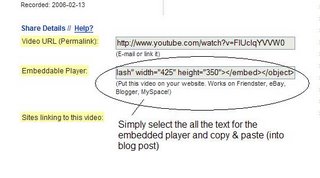
!. Copy the code for the "Embeddable Player" that appears to the right of the video in YouTube.
2. Sign onto Blogger.
3. In Blogger, select new post.
4. In the new post window, select the edit html tab.
5. Paste the code into the edit html window.
6. Select the compose tab and type your comments.
7. Save or publish your post.


Here is where you will find the code:


Other popular video hosting sites:


NOTE: Videos, like music downloads, require large amounts of bandwidth. It is recommended that you complete this exercise during light internet usage times.

Thursday, December 20, 2007

Thing 22 - Have some Flickr fun and discover some Flickr mashups & 3rd party sites.


Like many web 2.0 sites, Flickr has encouraged other people to build their own online applications using images found on the site. Through the use of APIs (application programming interfaces), many people have created third party tools and mashups* that use Flickr images. Here are just a sampling of a few …


  • Mappr - allows you to take Flickr images and paste them on a map

  • Flickr Color Pickr - lets you find public photos in Flickr that match a specific color.

  • Montagr – create a photo mosaic from photos found on Flickr.
Discover more mashups, web apps, and Flickr tools.

Discovery Exercise:


Your discovery exercise for this “thing” is to:


  1. Explore some of the fun Flickr mashups and 3rd party tools that are out there.

  2. Create a blog post about one that intrigues you.


I really cool mashup is FD ToysTrading Card Maker. And there’s a ton of librarians out there that have created their own Librarian Trading Card.

So have some fun discovering and exploring some neat little apps. And if you're up to the challenge while you’re at it, why not create a trading card of your own. :)

* Mashup Note: Wikipedia offers some great articles that explain mashups. Basically they are hybrid web applications that take features from one application (like Flickr) and mash it up with another (like a map). In this example, you get Mappr (http://mappr.com).

PS: At the top of this post, you'll see Learning 2.0 image created by Spell with Flickr.


Thing 21 - Learn how tags are essential in this site.

We learned about tags, tagging and folksomony in week 8. This week, we looked at Flickr. Tags are really important in this photo sharing web site. Tags allow you to share your photos in many different and very creative ways. In many ways, Flickr has features similar to online social networking sites that we talked about in Week 7. Check out the discovery resources below!


Discovery Resources

Do More with your photos - Flickr

The Friendster of Photo Sites” by Katharine Mieszkowski, Salon, 12/20/2004

Flickr - Wikipedia

Flickr + Libraries= Scary, scary, scary - Blog post by Michael Stevens, ALA TechSource, 7/28/2006

Ten Ways to use Flickr in your library - Blog post by Michael Stevens, Tame the Web, 11/11/2006


Visualizing the Flickr social network - Flickr Central Discuss

Help / Tags - Flickr


Discovery Exercise


  1. Read at least 2 of the Discover Resources and think about how Flickr is different from traditional photosharing web sites.


  2. Create a blog post with your thoughts. Dig deep with this one: To get you started, why is tagging important? What does it allow users to do? How does community develop on Flickr?


Wow! 21 Things complete so far. Keep going --- you're almost there.

Thing 20 - Explore Flickr and learn about this popular image hosting site

Photo sharing web sites allow users to upload and publish their digitial photographs online; these services enable both private or public photo sharing. Each user determines by privacy controls how their images are viewed by others.


Photo sharing web sites have been around since the 1990s; but it took a small startup site called Flickr to catapult the idea of “sharing” into a full blown online community. Flickr is fastest growing photo sharing site on the web. It is also known as one of the first web sites to use keyword “tags” to create associations and connections between photos and users of the site.

For this discovery exercise, you are asked to take a good look at Flickr and discover what this site has to offer. Find out how tags work, what groups are, and all the neat things that people and other libraries (list also here) are using Flickr for.

Discovery Resources:


Flickr Learn More tour (6 steps)


Mediamazine Flickr Tutorials


Flickr: Popular tags
Interesting- Last 7 days

Flickr Services (3rd party applications & mashups)
and let’s not forget to look at some other libraries on Flickr


Discovery Exercise (Option 1)


1. Take a good look around Flickr and discover an interesting image that you want to blog about.


2. Create a blog post about your Flickr experience. Be sure to include either a link to an image or, if you create a Flickr account, you can use Flickr's blogging tool to add the image in your post. Another option you have for including images in your post is to use Blogger's photo upload tool.


Discovery Exercise (Option 2)


1. If you're up to an easy challenge ... create a Free account in Flickr and use your location's digital camera to capture a few pictures of something in your branch. Upload these to your Flickr account and tag at least one of the images “VBPL_L2” and mark it public.


2. Then create a post in your blog about your photo and experience. Be sure to include the image in your post. Once you have a Flickr account, you have two options for doing this: through Flickr's blogging tool or using Blogger's photo upload feature.


So go ahead, explore the site and have some Flickr photo fun and if you're interested in looking at some photo hosting sites, then why not check out this Wired story.


NOTE: Photo posting etiquette

1 - When posting identifiable photos of other people (especially minors) is it advisable to get the person's permission before posting their photo in a publicly accessible place like Flickr.

2 - Never upload pictures that were not taken by you (unless you have the photographer's consent)

3 -Always give credit when you include photos taken by someone else.