
If you are a library staff person who registered for this program before February 29, 2008, keep working to complete all the exercises. If you can do all 30 Things before April 30, 2008, we will enter your name into a drawing for an MP3 player.
To be eligible for the drawing and to receive credit for completing the training, you must send your name, employee number assigned to you at registration, blog title and blog URL to Cindy Hart, Virtual Librarian, at chart@vbgov.com before April 30th.
Monday, March 17, 2008


Sunday, January 13, 2008
Thing 30 - Summarize your thoughts and post on your blog
Wow! Congratulations!! You’ve reached the 3oth thing. Your reward for completing this journey before the February 29th deadline is an MP3. This reward is funded by the Virginia Beach Library Foundation. You will recieve your reward at All Staff Training Day in March.
For your last and final exercise for this program please reflect on your learning journey and post a few thoughts. Here are some questions to help you get started...
In closing, I want to thank each and every one of you for joining me on this journey. As a system, we have had an amazing learning experience. Let's keep it going...
Thank you, Cindy
For your last and final exercise for this program please reflect on your learning journey and post a few thoughts. Here are some questions to help you get started...
- Were there any take-aways or unexpected outcomes from this program that surprised you?
- What could we do differently to improve upon this program’s format or concept?
And last but not least… - If we offered another discovery program like this in the future, would you again chose to participate?
In closing, I want to thank each and every one of you for joining me on this journey. As a system, we have had an amazing learning experience. Let's keep it going...
Thank you, Cindy
Thing 29 - Blog about your Learning 2.0 experience
We've come a long way together over the past 12 weeks. We are almost at the end of our learning and discovery journey for this installment of Learning 2.0. For Thing 29, there are two parts.
Discovery Exercise
1. First, blog about your Learning 2.0 experience. Tell me...
What were your favorite discoveries or exercises on this learning journey?
How has this program assisted or affected your lifelong learning goals?
2. Second, check out the blogs of at least three Learning 2.0 participants. Please do not use the L2 public spread sheet to check out participant blogs. Follow the Learning 2.0 participants link provided. Comment on their blogs. Tell them...
What you like about their blog.
One learning experience or discovery that you shared.
One more Thing to go!
Sunday, January 6, 2008
Thing 28 - Roll your own search tool with Rollyo
Do you have a group of favorite web sites? Or a set of online resources that are similar that you frequently use to answer homework or reference questions? Well Rollyo may be the tool for you. Rollyo allows you to create your own search tool for the just the websites you know and trust.
Take a look at some of these search rolls that have already been created:
Public Domain e-Books Search
Rare Book Library Search
Discovery Exercise (Option 1):
Take a look at some of these search rolls that have already been created:
Public Domain e-Books Search
Rare Book Library Search
Explore other rolls here.
Discovery Exercise (Option 1):
- Explore Rollyo and create an account for yourself.
- Create a search roll for any subject you like.
- Create a post in your blog about your experience and link to your search roll. Can you see a potential use for tools like this?
OPTION 1: Add your searchroll to your blog using the "Create a Searchbox" tool.
DISCOVERY EXERCISE (Option 2):
1. Explore Rollyo.
2. Create a post in your blog about your experience. Can you see a potential use for tools like this one?
Thing 27 - Take a look at LibraryThing and catalog some of your favorite books
Are you book lover or cataloger at heart? Or do you enjoy finding lost and forgotten gems on the shelf to read? Then LibraryThing may be just the tool for you. Developed for booklovers, this online tool not only allows you to easily create an online catalog of your own it also connects you to other people who have similar libraries and reading tastes. Add a book to your catalog by just entering the title -- It’s so easy that you don’t even need MARC record training to do it – or connect with other users through your similar reading tastes. There are lots of ways to use LibraryThing. You can even view your books on a virtual shelf, add a widget (see sidebar for sample) to display titles that are in your catalog or install a LT Search box on your blog.
So why not join the ranks and create your own library online. With over 65,000 registered (BTW: LibraryThing also has group forum for librarians users and over 4.7 million cataloged books, you're bound to discover something new.
Discovery Resources:
Discovery Exercise:
So why not join the ranks and create your own library online. With over 65,000 registered (BTW: LibraryThing also has group forum for librarians users and over 4.7 million cataloged books, you're bound to discover something new.
Discovery Resources:
- About LibraryThing
- Library Thing tour
- MoBuzzTV Review (3rd story in the 5 min broadcast)
- LibraryThing blog (updates & news)
Discovery Exercise:
- Take a look around LibraryThing and create an account.
- Add a least 5 books to your library.
- Blog about your findings and be sure to link to your LibraryThing catalog.
Thing 26 - Play around with an online image generator
Generators? No, I’m not talking about those gas powered back-up things. The generators I’m talking about allow you to easily manipulate image and graphics to create fun images like these:


For this discovery exercise, I just want you to have fun. Find a few fun image or text generators to play around with and write a post in your blog about one of your favorites and display the result. Often adding the image you mocked up to your blog is as simple as copying and pasting code that the page provides. If not, you may just need to right click on the image and then save it to your hard drive before using Blogger’s image button to add it to your post.
If you’re having difficulty getting your image added to a post in your blog, ask a co-worker for help. In looking at several staff blogs, it’s easy to see that we have lots of people in the system who have figured out how easy it is to add images to their blogs.
Discovery Resources:
The Generator Blog
Letter James
FD Toys
Also try searching for online generators, text generators or image generators!
Discovery Exercise:
1. Play around with some image generators and find one that you like.
2. Post the result of your discovery process in your blog.
Note: Be sure to include a link to the image generator itself, so other participants can discover it too.
So take some time and have fun with this exercise. And remember to be tasteful too!
* Images created with Dummies Book Generator, FD Toys Magazine Cover, Comic Strip Generator.



For this discovery exercise, I just want you to have fun. Find a few fun image or text generators to play around with and write a post in your blog about one of your favorites and display the result. Often adding the image you mocked up to your blog is as simple as copying and pasting code that the page provides. If not, you may just need to right click on the image and then save it to your hard drive before using Blogger’s image button to add it to your post.
If you’re having difficulty getting your image added to a post in your blog, ask a co-worker for help. In looking at several staff blogs, it’s easy to see that we have lots of people in the system who have figured out how easy it is to add images to their blogs.
Discovery Resources:
The Generator Blog
Letter James
FD Toys
Also try searching for online generators, text generators or image generators!
Discovery Exercise:
1. Play around with some image generators and find one that you like.
2. Post the result of your discovery process in your blog.
Note: Be sure to include a link to the image generator itself, so other participants can discover it too.
So take some time and have fun with this exercise. And remember to be tasteful too!
* Images created with Dummies Book Generator, FD Toys Magazine Cover, Comic Strip Generator.
Sunday, December 30, 2007
Thing 25 - Summarize your thoughts about podcasts and video on your blog. Add a link to a YouTube video, too. It's fun
Now you know about podcasts and video. You have thought about and blogged about how these features might be useful on a library web site. Now, dig a little deeper and take a look at how libraries are using podcasts and video.
Discovery Resources
The Library Channel - Arizona State University
Podcasts - Denver Public Library
Podcasting - LibSuccess Wiki - A listing of libraries that podcast along with other resources.
Podcasting Toolbox - Great information about 70 tools and resources by Mashable: Social Networking News, 7/04/2007
Podcasts - Sheridan Libraries at John Hopkins University
Discovery Exercises
Discovery Resources
The Library Channel - Arizona State University
Podcasts - Denver Public Library
Podcasting - LibSuccess Wiki - A listing of libraries that podcast along with other resources.
Podcasting Toolbox - Great information about 70 tools and resources by Mashable: Social Networking News, 7/04/2007
Podcasts - Sheridan Libraries at John Hopkins University
Discovery Exercises
1. Visit at least one library web sites that uses podcasting to connect with library customers.
2. Blog about what you found. What worked? What did not work? Are there better ways to deliver the same service or product to the library customer?
Only two more weeks of blog posts to go! Then, you have four more weeks to complete the program.
If you have questions, please come to an open lab day or contact me! Collaboration is an important part of this program.
Thing 24 - Discover some useful search tools for locating podcasts
Listen to a podcast about podcasting. Too bad that I could not figure out how to make an alliteraton out of that sentence.
Podcasts
AUDIO FILE + RSS FEED = PODCAST. A podcast is an Internet radio show. What makes them special is how they are delivered to the user. It is distinguishable from other digital audio formats by its ability to be downloaded automatically using software capable of reading feed formats such as RSS or Atom. The software is always-on when the user’s computer starts and runs in the background. In other words, you do not need an MP3 player to listen to a podcast; your computer does all the work. In fact, 80% of all podcasts are consumed on the PC which they were downloaded.
Vodcasts
Video podcasting, sometimes referred to as vodcasting or vidcasting, is video-on-demand. It is almost identical to podcasting except the content is video versus audio. The content is also more likely to be played on a personal computer than on a personal media assistant. It may be delivered as a file or as a stream. Estreaming is a form of Vodcasting.
More on the topic
People often use the word podcast to refere to both a podcast and a vodcast as defined above. In 2005, "podcast" was named the "word of the year" by New Oxford American Dictionary and with the growth of podcasting over the last 24 months, it's easy to see why.
Podcasts take many forms, from short 1-10 minutes commentaries (like the ones used in this Learning 2.0 program) to much longer in person interviews or panel group discussions. There’s a podcast out there for just about every interest area and the best part about this technology is that you don’t have to have an iPod or a MP3 player to access them. Since podcasts use the MP3 file format, a popular compressed format for audio files, you really just need a PC (or portal device) with headphones or a speaker.
iTunes, the free downloadable application created by Apple is the directory finding service most associated with podcasts, but if you don’t have iTunes installed there are still plenty of options.
For this discovery exercise participants are asked to take a look at some popular podcast directory tools. Do some exploring on your own and locate a podcast that is of interest to you. Once found, you can easily pull the RSS feed into your Bloglines account as well, so that when new casts become available you’ll be automatically notified of their existence.
Discovery Resources:
- To find out more about podcasts, start with the Yahoo: What is a podcast tutorial.
- There are many podcast directories and finding tools available. Here are just three of the more popular ones that, unlike iTunes, do not require a software download:
1. Podcast.net
2. Podcastalley.com
3. Yahoo Podcasts
- What? You want to learn how to be a podcaster too?
(Optional Resources for those who want to learn create podcasts) - Yahoo: Publish a podcast
- Odeo’s Studio – online recording studio.
- Beginner's guide to Podcasts & Creating Podcasts
- How to podcast tutorial
Discovery Exercise:
- Take a look at one or two of the podcast directories listed and see if you can find a podcast that interests you. See if you can find some interesting library related podcasts here like book review podcasts or library news.
- Add the RSS feed for a podcast to your Bloglines account.
- Create a blog post about your discovery process. Did you find anything useful here?
Optional: If you're ambitious, why not try out the Audioblogger service and add an audio post about your experience to your blog.
Thing 23 - Discover YouTube and a few sites that allow users to upload and share videos
Listen to a podcast on video hosting and sharing
Within the past year online video hosting sites have exploded allowing users to easily to upload and share videos on the web. Among all the web 2.0 players in this area, YouTube is currently the top video hosting web site serving up over 100 million a day in 2007 and allowing users not only to upload their own video content easily, but also to embed video clips into their own sites.
Do some searching around YouTube and see what the site has to offer. You'll find everything from 1970s TV commercials and 60s music videos to library dominos and kids singing about bloopers here. Like any free site, you will find videos that do not suit you. Explore and see for yourself what the site has to offer visitors.
Discovery Exercise:
- Explore YouTube and locate a video y0u want to add as an entry in your blog.
- Create a blog post about your experience. Here are some questions to get you started: What did you like or dislike about the site? Why did you choose the video that you did? Are there any features or components of the site that you find interesting? How can they be applied to library web sites?
Optional Discovery Exercise:
Try adding a video clip to a blog post.
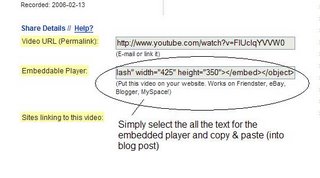
Here are the steps:
!. Copy the code for the "Embeddable Player" that appears to the right of the video in YouTube.
2. Sign onto Blogger.
3. In Blogger, select new post.
4. In the new post window, select the edit html tab.
5. Paste the code into the edit html window.
6. Select the compose tab and type your comments.
7. Save or publish your post.
Here is where you will find the code:
Other popular video hosting sites:
NOTE: Videos, like music downloads, require large amounts of bandwidth. It is recommended that you complete this exercise during light internet usage times.
Thursday, December 20, 2007
Thing 22 - Have some Flickr fun and discover some Flickr mashups & 3rd party sites.

Like many web 2.0 sites, Flickr has encouraged other people to build their own online applications using images found on the site. Through the use of APIs (application programming interfaces), many people have created third party tools and mashups* that use Flickr images. Here are just a sampling of a few …
- Mappr - allows you to take Flickr images and paste them on a map
- Flickr Color Pickr - lets you find public photos in Flickr that match a specific color.
- Montagr – create a photo mosaic from photos found on Flickr.
Discovery Exercise:
Your discovery exercise for this “thing” is to:
- Explore some of the fun Flickr mashups and 3rd party tools that are out there.
- Create a blog post about one that intrigues you.
I really cool mashup is FD Toys’ Trading Card Maker. And there’s a ton of librarians out there that have created their own Librarian Trading Card.
So have some fun discovering and exploring some neat little apps. And if you're up to the challenge while you’re at it, why not create a trading card of your own. :)
* Mashup Note: Wikipedia offers some great articles that explain mashups. Basically they are hybrid web applications that take features from one application (like Flickr) and mash it up with another (like a map). In this example, you get Mappr (http://mappr.com).
PS: At the top of this post, you'll see Learning 2.0 image created by Spell with Flickr.
Thing 21 - Learn how tags are essential in this site.
We learned about tags, tagging and folksomony in week 8. This week, we looked at Flickr. Tags are really important in this photo sharing web site. Tags allow you to share your photos in many different and very creative ways. In many ways, Flickr has features similar to online social networking sites that we talked about in Week 7. Check out the discovery resources below!
Discovery Resources
Do More with your photos - Flickr
“The Friendster of Photo Sites” by Katharine Mieszkowski, Salon, 12/20/2004
Flickr - Wikipedia
Flickr + Libraries= Scary, scary, scary - Blog post by Michael Stevens, ALA TechSource, 7/28/2006
Ten Ways to use Flickr in your library - Blog post by Michael Stevens, Tame the Web, 11/11/2006
Visualizing the Flickr social network - Flickr Central Discuss
Help / Tags - Flickr
Discovery Exercise
Discovery Resources
Do More with your photos - Flickr
“The Friendster of Photo Sites” by Katharine Mieszkowski, Salon, 12/20/2004
Flickr - Wikipedia
Flickr + Libraries= Scary, scary, scary - Blog post by Michael Stevens, ALA TechSource, 7/28/2006
Ten Ways to use Flickr in your library - Blog post by Michael Stevens, Tame the Web, 11/11/2006
Visualizing the Flickr social network - Flickr Central Discuss
Help / Tags - Flickr
Discovery Exercise
- Read at least 2 of the Discover Resources and think about how Flickr is different from traditional photosharing web sites.
- Create a blog post with your thoughts. Dig deep with this one: To get you started, why is tagging important? What does it allow users to do? How does community develop on Flickr?
Wow! 21 Things complete so far. Keep going --- you're almost there.
Thing 20 - Explore Flickr and learn about this popular image hosting site
Photo sharing web sites allow users to upload and publish their digitial photographs online; these services enable both private or public photo sharing. Each user determines by privacy controls how their images are viewed by others.
Photo sharing web sites have been around since the 1990s; but it took a small startup site called Flickr to catapult the idea of “sharing” into a full blown online community. Flickr is fastest growing photo sharing site on the web. It is also known as one of the first web sites to use keyword “tags” to create associations and connections between photos and users of the site.
For this discovery exercise, you are asked to take a good look at Flickr and discover what this site has to offer. Find out how tags work, what groups are, and all the neat things that people and other libraries (list also here) are using Flickr for.
Discovery Resources:
So go ahead, explore the site and have some Flickr photo fun and if you're interested in looking at some photo hosting sites, then why not check out this Wired story.
NOTE: Photo posting etiquette
1 - When posting identifiable photos of other people (especially minors) is it advisable to get the person's permission before posting their photo in a publicly accessible place like Flickr.
2 - Never upload pictures that were not taken by you (unless you have the photographer's consent)
3 -Always give credit when you include photos taken by someone else.
Photo sharing web sites have been around since the 1990s; but it took a small startup site called Flickr to catapult the idea of “sharing” into a full blown online community. Flickr is fastest growing photo sharing site on the web. It is also known as one of the first web sites to use keyword “tags” to create associations and connections between photos and users of the site.
For this discovery exercise, you are asked to take a good look at Flickr and discover what this site has to offer. Find out how tags work, what groups are, and all the neat things that people and other libraries (list also here) are using Flickr for.
Discovery Resources:
Flickr Learn More tour (6 steps)
Flickr: Popular tags
Interesting- Last 7 days
Flickr Services (3rd party applications & mashups)
and let’s not forget to look at some other libraries on Flickr
Discovery Exercise (Option 1)
1. Take a good look around Flickr and discover an interesting image that you want to blog about.
2. Create a blog post about your Flickr experience. Be sure to include either a link to an image or, if you create a Flickr account, you can use Flickr's blogging tool to add the image in your post. Another option you have for including images in your post is to use Blogger's photo upload tool.
Discovery Exercise (Option 2)
1. If you're up to an easy challenge ... create a Free account in Flickr and use your location's digital camera to capture a few pictures of something in your branch. Upload these to your Flickr account and tag at least one of the images “VBPL_L2” and mark it public.
2. Then create a post in your blog about your photo and experience. Be sure to include the image in your post. Once you have a Flickr account, you have two options for doing this: through Flickr's blogging tool or using Blogger's photo upload feature.
So go ahead, explore the site and have some Flickr photo fun and if you're interested in looking at some photo hosting sites, then why not check out this Wired story.
NOTE: Photo posting etiquette
1 - When posting identifiable photos of other people (especially minors) is it advisable to get the person's permission before posting their photo in a publicly accessible place like Flickr.
2 - Never upload pictures that were not taken by you (unless you have the photographer's consent)
3 -Always give credit when you include photos taken by someone else.
Sunday, December 16, 2007
Thing 19 - Explore any site from the Web 2.0 awards list, play with it and write a blog post about your findings.
So far, we have explored a small sampling of new Internet technologies and web sites that are empowering users with the ability to create and share content. There are hundreds more available. I keep a watch on new mashups at http://www.programmableweb.com/. There are tons of blogs and web sites featuring web 2.0 web sites and technologies.
For this discovery exercise, participants are asked to select any site from this list of Web 2.0 Awards nominees and try it. With so many to choose from, it might be handy to first select a category that interests you (like Books or Personal Organization) and then simply select a tool or site to try.
NOTE: Be careful to select a tool that is Free and that does not require a plug-in or download. The majority of these are free. If privacy is a concern for you, please select one that does not require registration.
Discovery Exercise:
For this discovery exercise, participants are asked to select any site from this list of Web 2.0 Awards nominees and try it. With so many to choose from, it might be handy to first select a category that interests you (like Books or Personal Organization) and then simply select a tool or site to try.
NOTE: Be careful to select a tool that is Free and that does not require a plug-in or download. The majority of these are free. If privacy is a concern for you, please select one that does not require registration.
Discovery Exercise:
- Select any site/tool from the list of Web 2.0 Awards nominees. (If you prefer to select from just the winners, here’s a link to the short list.)
- Explore the site you selected.
- Create a post about your discovery. Here are some questions to get you started: What did you like or dislike about the tool? What were the site’s useful features? Could you see any applications for its use in a library setting?
Thing 18 - Explore Tecnorati and learn how tags work with blog posts
Now that you’ve been blogging for awhile, you might be wondering just how big the blogosphere is right now. Until recently, Technorati, the leading search tool and authority for blogs, showed the number of blogs doubling just about every 6 months. In April of 2007, there were 70 million blogs being tracked by Technorati. Technorati also reported a slowing in the growth rate of the blogosphere and the rate of daily posts.
Here are some other statistics reported in April 2007:
70 million weblogs (blogs)
About 120,000 new blogs each day
1.4 new blogs every second
1.5 million posts per day
17 posts per second
Growing from 35 to 75 mission blogs took 320 days
The numbers are astounding. Blogging is so easy that these publishing tools are being taken advantage of by almost every industry, including libraries.
Technorati is tracking more than just blogs. How is this possible? Tagging or the practice of adding tags (keywords) has crossed over many different forms of social media and publishing platforms supporting these different types of media.
How does a person get their blog listed as part of the blogosphere? How can you tag your posts with keywords to make them more findable through a Technorati search?
The answer to the first question is that your blog is probably already being captured by Technorati due to the fact that you're already using Blogger, the most popular blogging tool. But if you want to join the party and have your blog officially listed on Technorati and also take advantage of the watchlist and other features, you’ll need to claim your blog yourself.
As for tagging posts with Technorati tags? This is easy, too. All you need to do is add a little bit of HTML code to the bottom of your post (see my example below) and Technorati will pick up these tags when it spiders (or web crawls) your site.
There are a lot of new features that have been added to Technorati, including new ways to search for blogs. You can search for keywords in blog posts, search for entire blog posts that have been tagged with a certain keyword, or search for blogs that have been registered and tagged as whole blogs about a certain subject (like photography or libraries).
Discovery Resources:
Technorati Tour – videocast of new features & new look
Technorati Discover & Popular features
Discovery Exercise:
There's a lot to explore.
Technorati Tag: VBPLL2
NOTE: If you liked Technorati and want more, try out IceRocket. It is a combination of some of the best features of existing blog search engines plus some unique things like the date specific search. Find IceRocket at http://www.icerocket.com/.
Here are some other statistics reported in April 2007:
70 million weblogs (blogs)
About 120,000 new blogs each day
1.4 new blogs every second
1.5 million posts per day
17 posts per second
Growing from 35 to 75 mission blogs took 320 days
The numbers are astounding. Blogging is so easy that these publishing tools are being taken advantage of by almost every industry, including libraries.
Technorati is tracking more than just blogs. How is this possible? Tagging or the practice of adding tags (keywords) has crossed over many different forms of social media and publishing platforms supporting these different types of media.
How does a person get their blog listed as part of the blogosphere? How can you tag your posts with keywords to make them more findable through a Technorati search?
The answer to the first question is that your blog is probably already being captured by Technorati due to the fact that you're already using Blogger, the most popular blogging tool. But if you want to join the party and have your blog officially listed on Technorati and also take advantage of the watchlist and other features, you’ll need to claim your blog yourself.
As for tagging posts with Technorati tags? This is easy, too. All you need to do is add a little bit of HTML code to the bottom of your post (see my example below) and Technorati will pick up these tags when it spiders (or web crawls) your site.
There are a lot of new features that have been added to Technorati, including new ways to search for blogs. You can search for keywords in blog posts, search for entire blog posts that have been tagged with a certain keyword, or search for blogs that have been registered and tagged as whole blogs about a certain subject (like photography or libraries).
Discovery Resources:
Technorati Tour – videocast of new features & new look
Technorati Discover & Popular features
Discovery Exercise:
- Take a look at Technorati and try doing a keyword search for “Learning 2.0” in Blog posts, in tags and in the Blog Directory. Are the results different?
Explore popular blog, searches and tags. Is anything interesting or surprising in your results? - Create a blog post about your discoveries on this site.
OPTIONAL: If you're up for a challenge, learn how to tag your posts by with Technorati tags so they can join tag searches. Create a post about something. It can be anything you want and add the HTML code to the bottom to tag it as “VBPLL2.” You may also want to consider claiming your blog and creating a watchlist.
NOTE: When adding HTML code, you'll want to make sure you're in Blogger's Edit HTML window.
There's a lot to explore.
Technorati Tag: VBPLL2
NOTE: If you liked Technorati and want more, try out IceRocket. It is a combination of some of the best features of existing blog search engines plus some unique things like the date specific search. Find IceRocket at http://www.icerocket.com/.
Saturday, December 15, 2007
Thing 17 - Learn about tagging and Folksonomy; then, discover Del.icio.us.
Listen to a podcast on tagging, folksonomy and social bookmarking
Tagging is an open and informal method of categorizing that allows users to associate keywords with online content such as web pages, pictures or blog posts. Unlike library subject cataloging, which follows a strict set of guidelines (i.e. Library of Congress subject headings), tagging is completely unstructured and freeform. It allows users to create connections between data anyway they want.
This week, in addition to exploring Technorati tagging, we want to also take a look at popular social bookmarking site called Del.icio.us (typed in as http://del.icio.us/).
Del.icio.us is a social bookmarking manager which allows you to bookmark a web page and add tags to categorize your bookmarks.
Many users find that the real power of Del.icio.us is in the ability of users to share bookmarks. At its' core, Del.icio.us has a strong social networking aspect. Del.icio.us allows you to see how other users have tagged similar links. This is a great way to discover other web sites that may be of interest to you. You can think of it as peering into another person's filing cabinet; the difference is that this powerful bookmarking tool connects each user's filing cabinet into an expansive knowledge network.
For this discovery exercise, you are asked to take a look at Del.icio.us and learn about this popular bookmarking tool. First, please familiarize yourself further with the concept of tagging and folksonomy.
Discovery Resources:
Tagging & Folksonomy - YouTube Video - 2:12 minutes - This short video explains through examples the concept of tagging and folksonomy.
Tagging is an open and informal method of categorizing that allows users to associate keywords with online content such as web pages, pictures or blog posts. Unlike library subject cataloging, which follows a strict set of guidelines (i.e. Library of Congress subject headings), tagging is completely unstructured and freeform. It allows users to create connections between data anyway they want.
This week, in addition to exploring Technorati tagging, we want to also take a look at popular social bookmarking site called Del.icio.us (typed in as http://del.icio.us/).
Del.icio.us is a social bookmarking manager which allows you to bookmark a web page and add tags to categorize your bookmarks.
Many users find that the real power of Del.icio.us is in the ability of users to share bookmarks. At its' core, Del.icio.us has a strong social networking aspect. Del.icio.us allows you to see how other users have tagged similar links. This is a great way to discover other web sites that may be of interest to you. You can think of it as peering into another person's filing cabinet; the difference is that this powerful bookmarking tool connects each user's filing cabinet into an expansive knowledge network.
For this discovery exercise, you are asked to take a look at Del.icio.us and learn about this popular bookmarking tool. First, please familiarize yourself further with the concept of tagging and folksonomy.
Discovery Resources:
Tagging & Folksonomy - YouTube Video - 2:12 minutes - This short video explains through examples the concept of tagging and folksonomy.
Folksonomy - Wikipedia article
Folksonomies and Image Tagging: Seeing the Future? - article by Diane Neal -- Bulletin, October/November 2007
Tags & Folksonomies - What are they, and why should you care? - 2005 blog post from Threadwatch.org. Highly readable and still revelant reading.
Making your Library Del.icio.us - OPAL presentation by Jason Griffey. You need the OPAL plug-in to do this one.
Making your library Del.icio.us - Podcast (WMA audio file) of same the presentation by Jason Griffey.
Social Bookmarking Showdown - blog article at Wired that compares the major social bookmarking sites.
The Brave new world of Social Bookmarking - article by Amanda Etches-Johnson in the Canadian Library Association news
Social Bookmarking in Plain English - 3:25 minute YouTube video by Common Craft Productions.Otter Group Del.icio.us tutorial (8 min video) - Highly recommended!!!
Us.ef.ul: A beginners guide to Del.icio.us
Several Habits of wildly successful Del.icio.us users
Discovery Exercise:
- Read, watch or listen to at least two resources on tagging and folksonomy.
- View the 8 minute Del.icio.us tutorial to get a good overview of Del.icio.us and its features.
- Take a look around Del.icio.us using the VBPLL2 account that was created for this exercise. To access these bookmarks, please select the del.icio.us link, VBPLL2, on the right hand side of this post, directly underneath the SNAP SHOTS link in the navigation area. Note: In this account you will find lots of resources that have been highlighted or used throughout the course of the Learning 2.0 program.
- Explore the site options and try clicking on a bookmark that has also been bookmarked by a lot of other users. Can you see the comments they added about this bookmark or the tags that they used to categorize this reference?
- Create a blog post about your experience and thoughts about this tool.
Can you see the potential of this tool for research assistance? Or just as an easy way to create bookmarks that can be accessed from anywhere?
OPTIONAL: If you’re up to the challenge, create a Del.icio.us account for yourself and discover how this useful bookmarking tool can replace your traditional browser bookmark list. You might even want to explore Del.icio.us’ latest addition, a network badge. (Psst! see it over there at the end of the navigation sidebar under the Cluster Map)
Note: If you do setup a Del.icio.us account, here’s a quick word about the Del.icio.us Buttons. On staff PCs, meaning the toolbars locked down by ComIT, the Del.icio.us buttons will install as options in your browser bookmarks. Use the “Post to my Del.icio.us” link to add the current web page to your account (you may need to log in first). Use the “My Del.icio.us” link to view your account.
Sunday, December 9, 2007
Thing 16 - Create your own MySpace profile; then, blog about it.
We've learned about online social networking. Now, we're taking our understanding to a new level and exploring MySpace.
Please note: Thing 16 has 2 Discovery Exercises. Please complete Discovery Exerice option 1 if you do not want to create a personal MySpace profile.
Nielsen ratings report that MySpace is the fastest growing web brand in the U.S. today. comScore Media Metrix measures and reports the details of online media usage, visitor demographics and other online consumber behavior. In 2006, they found that MySpace received more page views than Yahoo.
What does all of this mean for consumers, the future of the Internet and libraries?
Explore the Discovery Resources below and do one of the Discovery exercises.
Discovery Resources
Help - MySpace
How to modify your MySpace, Facebook, MSN Spaces or Hi5 - Tips from Growup Geek web site
How to Sign up for a MySpace Account - YouTube Video - 5:32 long
My-Space Help - Code and advanced help for those really serious MySpacers. NOTE: This is not the official MySpace help.
Take the MySpace Tour - the official MySpace tour with screen shots featuring the site's main functions.
Discovery Exercise (Option 1)
1. Take the MySpace Tour and explore MySpace Help; then read, watch or listen to at least two of the additional resources listed above.
2. Create a blog post about your MySpace experience. Here are some questions to get you started: Does it look easy? How do you feel about MySpace? Did your opinion(s) about MySpace alter after your exploring of the discovery resources? Why is MySpace so popular with so many different people? Do you want to try it now?
Discovery Exercise (Option 2)
NOTE: If you are using a staff computer to create your MySpace profile, you will often receive ActiveX pop-up messages. In many cases to proceed, you will need to right click on the yellow box and allow the pop-up.
1. Create a MySpace profile following these directions or using the MySpace Help:
Sign up. Select the "Sign Up" link on the MySpace homepage and fill out the sign up form.
- Edit Your Page: Start by clicking on the "Edit Profile" link. The next page will ask a lot of personal questions like who your hero is and what kind of music do you like. Answer only what you are comfortable having other people read about you. To answer one of these questions click the "Edit" button for that question, type in the answer, click the "Preview" button, then the "Submit" button. When you are finished, click on the link at the top of the page that says "View My Profile" to view your MySpace page.
- Post a photo of yourself, your cat or something else...you get the idea. Read the rules about what kinds of pictures you are allowed to upload. They don't allow pictures that have nudity, are sexually explicit, violent or offensive, or are copyrighted. They also request that you don't use photos that are of other people without first getting their permission.
- Here's how to post a photo: Select the "Browse" button, search for the image on your computer or network folder, and select the "Upload" button. If you don't want to add a photo to your MySpace account click the link underneath that says "Skip for now". You can always add your photo later if you want to.
- Give yourself some friends: Send emails to all your friends so they can sign up for MySpace too. If they already have a MySpace account they will be added to your friends list. If you're anti-social you can select the "Skip for now" link.
- If you want to you can change your account settings. Acount settings are such things as privacy settings, password, calendar settings, profile settings and away messages among other things. Click on "Account Settings" and you will see the list of settings that you can change. Go through and click on each one and change the settings to the way you want to manage your MySpace account. When you are finished click on "Change" at the bottom of the page.
- Add/Delete Friends: Click the link that says "Edit Friends". Put a check in the box next to the name of the friend you want to delete from your profile and hit the "Delete Selected" button. Now click on the "Home" link at the top of your page to go back to your editing page. Go back down to the "My Friend Space" box. There's a link in there that says "Invite Your Friends Here". This is the link you use to find new friends to add to your MySpace profile.
- MySpace Name: Select the link "Click Here" in the box that says "Pick your MySpace Name/URL!". This is where you will choose the address of your MySpace profile. The address is what you send to people so they can find your profile. Choose carefully, this will be your profile name. If you want people to be able to find you on MySpace using your real name then enter your name on the next page.
- Mail / Messages: This is where you check and manage your MySpace email. You have 4 options in this box: 1) check your inbox to see if you have any messages from your friends 2) view messages you have sent in the past 2 weeks (after that they are deleted) 3) check to see if anyone has responded to your friends requests 4) post a bulletin. A bulletin is a message sent to everyone in your friends list.
- OPTIONAL- Create a blog: MySpace also has a blogging feature. You can create your own blog or sign up to read the blogs of other people. If you want to start creating your own block, select"Manage Blog". On the blog editing page, you will see a box in the left column labled "My Controls". This is what you will use to create, edit and manage your blog. To create your first blog post click on "Post New Blog". Choose the date and time you want your blog entry to show up. Give your blog entry a title and choose a category for your entry. Write your blog entry adding colors and changing the way your post looks using the tools provided.
At the bottom of the post page are some questions for you to answer. They want to know what you are doing right now, while you're posting your blog entry. They also want to know what kind of mood you are in or what kind of mood your blog entry portrays. You can allow or disallow comments to your post using a checkbox provided. There are privacy settings too so you can choose who can read your posts. When you're finished click on "Preview and Post". If you like the way it looks when you preview it then click on "Post Blog" to post your blog entry. - OPTIONAL - Add some Music: Select the music link. You will find a small box of drop-down search menus you can use to find MySpace background music. All musical genres are represented here; you can search by artist, style, sounds like, etc. Once you find the artist you're looking for, select the artist's picture or name in the search results. If it's an official MySpace music page, there should be a red header across the top of the page with the words "MySpace Music." You should see a big gray box with music selections playing or ready to be played at the artist's MySpace profile. In order to add this artist's song to YOUR MySpace profile, click on the Add button right under your selected song. You'll be asked if you really want to add this song to your MySpace profile, and if the answer is yes, then click Add Song To Profile. When people go to your MySpace profile, they'll get MySpace background music.
2. Blog about your experience using MySpace. Here's some thoughts to get you started: Was it easy? Did you enjoy it? Why is MySpace so popular with so many different people?
Thing 15 - Get the 411 on Social networking.
Listen to a podcast on online social networking.

For many, online social networks (OSN) are about establishing and maintaining personal connections and finding friends with shared interests. As noted in the 2007 Horizon Report by the New Media Consortium and EDUCAUSE, “Researchers note that online spaces like MySpace and Facebook give students a safe place to gather, in much the same way that young people of previous generations hung out at the burger joint, the roller rink, or the mall…” (pg. 12)
There are OSNs for almost every conceivable topic and hobby; these sites range from photo sharing to music to book clubs to social activism. According to a January 2007 Pew Internet & American Life Project, in the past five years, social networking sites have moved from a niche activity into a phenomenon that engages tens of millions of Internet users of all ages. “Almost sixty percent of teens, aged 12 to 18, use online social networks”.
The Internet is now woven into everyday life. It is transforming communication into a seamless process. People move between telephone, computer and in person encounters actually increasing daily social interaction. OSNs play an interesting role in the lives of many people today. Find out more through the discovery resources and exercises.
Discovery Resources
Creating & Connecting//Research and Guidelines on Online Social and Educational Networking - National School Boards Associations, July 2007
Get out of my space - National Institute on Media and the Family
The Horizon Report - New Media Consortium & EDUCAUSE, January 2007
Identity Production in a Networked Culture: Why Youth Heart MySpace by Danah Boyd in American Association for the Advancement of Science, 2/19/2006
Libraries in Social networking by Meredith Farkas, Information Wants to be Free, 5/10/2006
Library Marketing in Online Communities by Jill Stove, Library Marketing, 5/01/2006
The Moral Panic over Social-Networking Sites by Wade Roush, Technology Review, 8/7/2006
The MySpace Generation - Business Week, 12/12/2005
Parents Guide to MySpace - YouTube Video - How Stuff Works Productions.
Social Networking Services - Wikipedia
Social Networking: A New Tech Tool and a New Security Concern for Teens and Schools by Joanne Barret, Multimedia and Internet in Schools, 5/01/2006
Social Networking Sites and Teens - Pew Internet & American Life Project
Social Networking Technologies: A Poke for Campus Services by Joanne Berg, EDUCAUSE Review, vol. 42, no. (March/April 2007): 32–44
Study: Many students talk about homework on social networking sites by Debra Lau Whalen in School Library Journal, 8/15/2007
Thoughts on Facebook, Cornell University
Your Space or MySpace by Beth Evans in Library Journal, 10/15/2006
Discovery Exercises
1. Read at least 2 of the Discovery Resources. Your goal is to gain an understanding of what social networking sites are and how they are different from traditional online communities.
2. Read at least 2 more of the Discovery Resources. Your goal is to gain an understanding of the controversies surrounding social networking sites and actions some schools and libraries have taken against social networking sites.
3. Create a blog post about one of the following: Should VBPL use a social networking site to connect with teens? or Social networking sites are really about ...?
In the next post, you'll learn more about MySpace and create your own MySpace profile (optional).
Sunday, December 2, 2007
Thing 14 - Add an entry into the Virginia Beach Public Library's Reader's Advisory wiki.
The Virginia Beach Public Library is already using wikis for staff communication, training and development. The Reader's Advisory Team has an exciting new wiki with hints and tips as well as great discussion opportunities.
Discovery Resource
1. Comment on the RA wiki: Tell us about your favorite book. Post a comment in the Staff Picks section of the wiki that includes the book's author, title and a brief plot summary. Keep it short --- no more than 3 sentences.
2. Make it relevant: Add at least 2 keywords or tags that describe the book's plot, setting or other appeal factors for the reader.
3. Blog about your experience. To get you started, here are some questions: Was it easy to figure out how to add your comments and edit the page? How can other library groups use wikis to communicate?
Get ready! Next week is all about online social networking sites.
Discovery Resource
VBPL Reader's Advisory wiki at http://vbplreadersadvisory.wikispaces.com/
Discovery Exercise
1. Comment on the RA wiki: Tell us about your favorite book. Post a comment in the Staff Picks section of the wiki that includes the book's author, title and a brief plot summary. Keep it short --- no more than 3 sentences.
2. Make it relevant: Add at least 2 keywords or tags that describe the book's plot, setting or other appeal factors for the reader.
3. Blog about your experience. To get you started, here are some questions: Was it easy to figure out how to add your comments and edit the page? How can other library groups use wikis to communicate?
Get ready! Next week is all about online social networking sites.
Thing 13 - Learn about wikis and discover some innovative ways that libraries are using them
Listen to a podcast on wikis.
A wiki is a collaborative website and authoring tool that allows users to easily add, remove and edit content. Wikipedia, the online open-community encyclopedia, is the largest and perhaps the most well known of these knowledge sharing tools. With the benefits that wikis provide, the use and popularity of these tools is exploding.
Some of the benefits that make wikis so attractive are:
- Anyone (registered or unregistered, if unrestricted) can add, edit or delete content.
- Tracking tools within wikis allow you to easily keep up on what been changed and by whom.
- Earlier versions of a page can be viewed and reinstated when needed.
- And users do not need to know HTML in order to apply styles to text or add and edit content. In most cases simple syntax structure is used.
As the use of wikis has grown over the last few years, libraries all over the country have begun to use them to collaborate and share knowledge. Among their applications are pathfinder or subject guide wikis, book review wikis, ALA conference wikis and even library best practices wikis.
Discovery Resources:
Use these resources to learn more about wikis:
- Wiki, wiki, wiki - from PLCMC's own Core Compentency blog
- Wiki’s: A Beginner’s Look – an excellent short slide presentation that offers a short introduction and examples.
- What is a Wiki? – Library Success wiki presentation
- Using Wikis to Create Online Communities – a good overview of what a wiki is and how it can be used in libraries.
Discovery Exercise:
- For this discovery exercise, you are asked to take a look at some library wikis and blog about your finding. Here’s a few examples to get you started:
SJCPL Subject Guides – a pathfinder wiki developed by the St. Joseph County Public Library system
Book Lovers Wiki - developed by the Princeton Public LibraryLibrary Success: A best practices wiki
ALA 2006 New Orleans wiki – an example of a wiki created to support a specific event
The Bull Run Library wiki - a public library wiki and also a Learning 2.0 participant
Other library wiki examples - Create a blog post about your findings. What did you find interesting? What types of applications within libraries might work well with a wiki?
So what's in a wiki? Find out by doing some exploring on your own.
Monday, November 26, 2007
Thing 12 - Discover how VBPL is using IM and find out how you can get involved
 Questions? Ask the Library! When we're online Monday - Thursday 3 to 7 pm or Saturday 1 to 5 p.m., you can chat live with a librarian. Send us an email anytime! Ask us a question over the telephone or on a visit to your local library. We're ready to help.
Reference and information giving are traditional library services that Virginia Beach (along with many other libraries) is translating into a virtual environment. For many years, VBPL has used an online form with an email response to assist customers in getting their information requests fulfilled via the Internet.
In September 2007, VBPL began offering customers the opportunity to use instant messaging to ask the library a question. The library has four instant messaging accounts: AOL, Yahoo, MSN and Google Talk. Our screen name is askvbpl.
In addition, anyone can ask us a question via IM without having their own personal IM account. All they need to do is type in a question in the Ask VBPL box on the Ask the Library web page at http://www.vbgov.com/vgn.aspx?vgnextoid=e582fd67f3ad9010VgnVCM100000870b640aRCRD&channel=true.
The Ask VBPL box is a cool Meebo tool. VBPL is using Meebo --- a web based instant messaging client to aggregate all four IM account and provide anonymous IM for customers without a personal IM account.
Meebo performs all of the most useful features of an instant messaging client through a computer’s web browser such as Internet Explorer, Mozilla or Firefox—without the need to install any software.
Meebo offers many advantages for the Library. Here are a few:
- Staff can do IM Reference from any Internet capable computer
- No software installs
- Lots of features
- Privacy protection
Discovery Resources
AHML Virtual Reference - YouTube video
Email is Dead - blog post at BigBlueBall.com
Meebo - About & Help
Meebo - Wikipedia article
Discovery Exercise
1. Explore at least 2 of the Discovery Resources listed above.
2. Observe an IM Reference transaction or talk to at least 1 person at your agency that is involved with IM Reference at VBPL. Find out about their experiences so far.
3. During the Ask VBPL service hours, go to the Ask the Library web page. Ask a question. All you need to do is type in the box. There are two boxes. The larger box displays the response to your question. The smaller box underneath it is where you type your question. It says in gray "Type here and hit enter to send a message".
4. Reflect on your exploration of IM by publishing a blog post about instant messaging and reference at the library. Are they a good mix?
Next week, we learn how to collaborate with Wikis!
Subscribe to:
Posts (Atom)


